
Live Mac app streaming
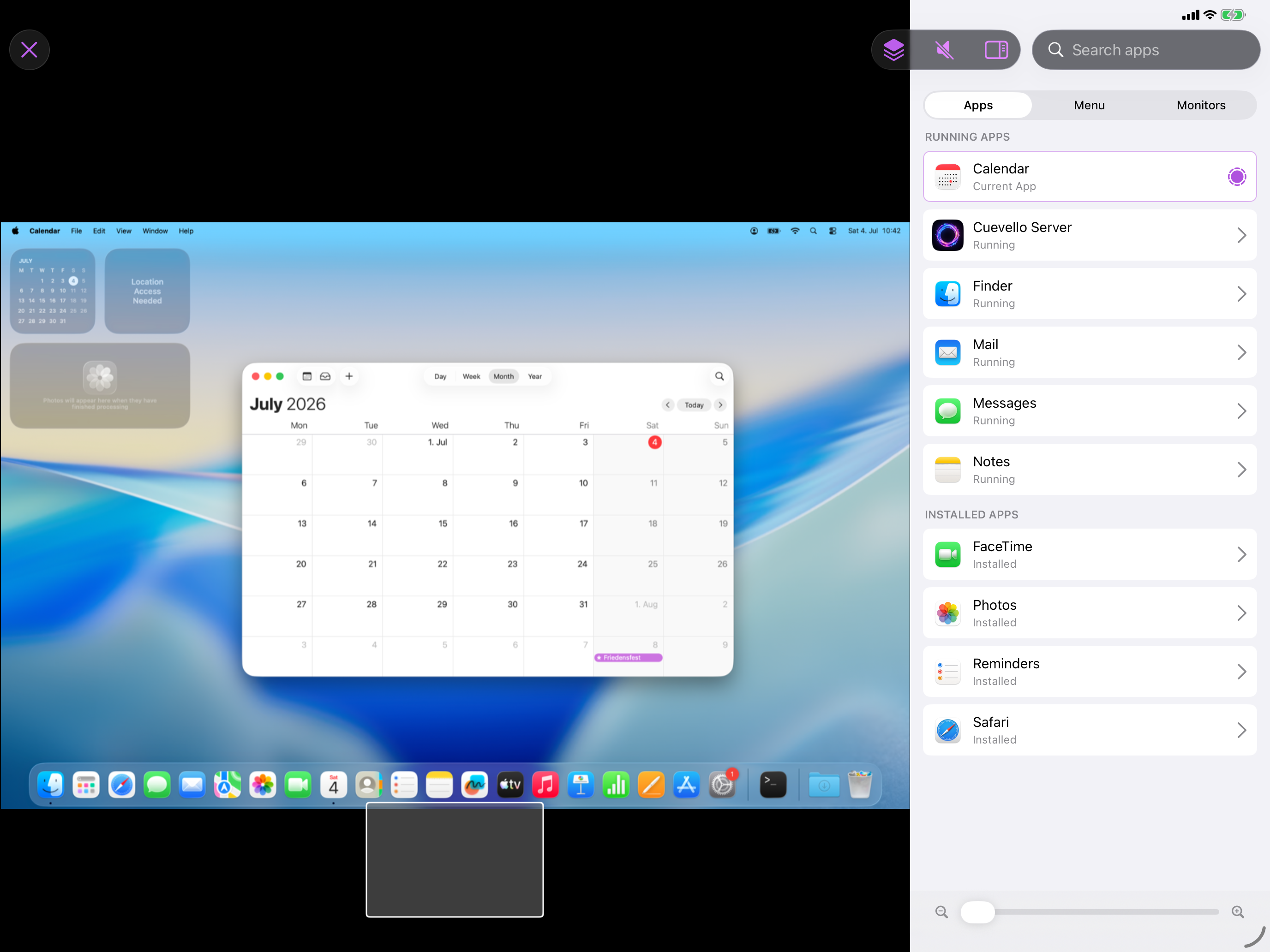
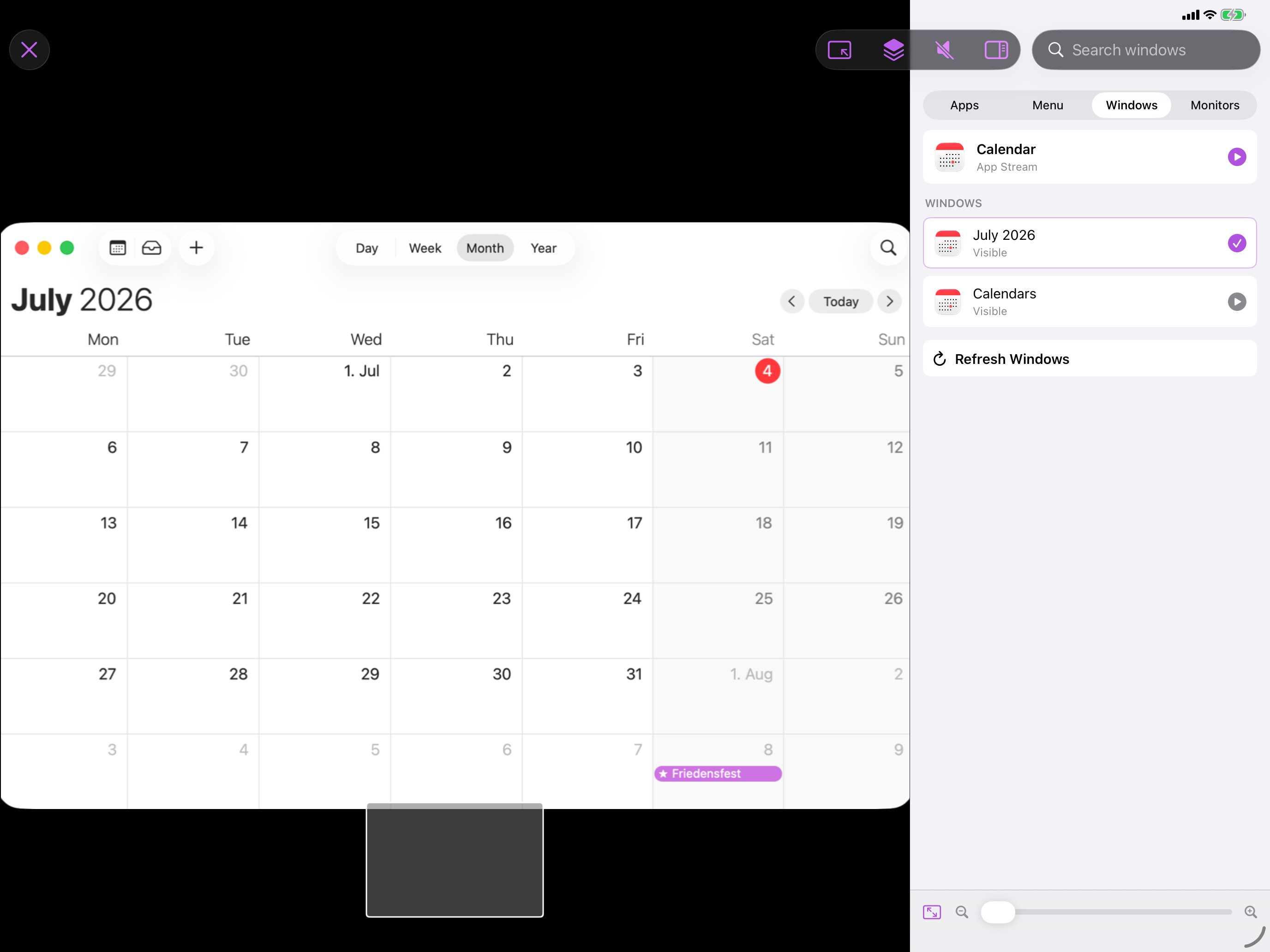
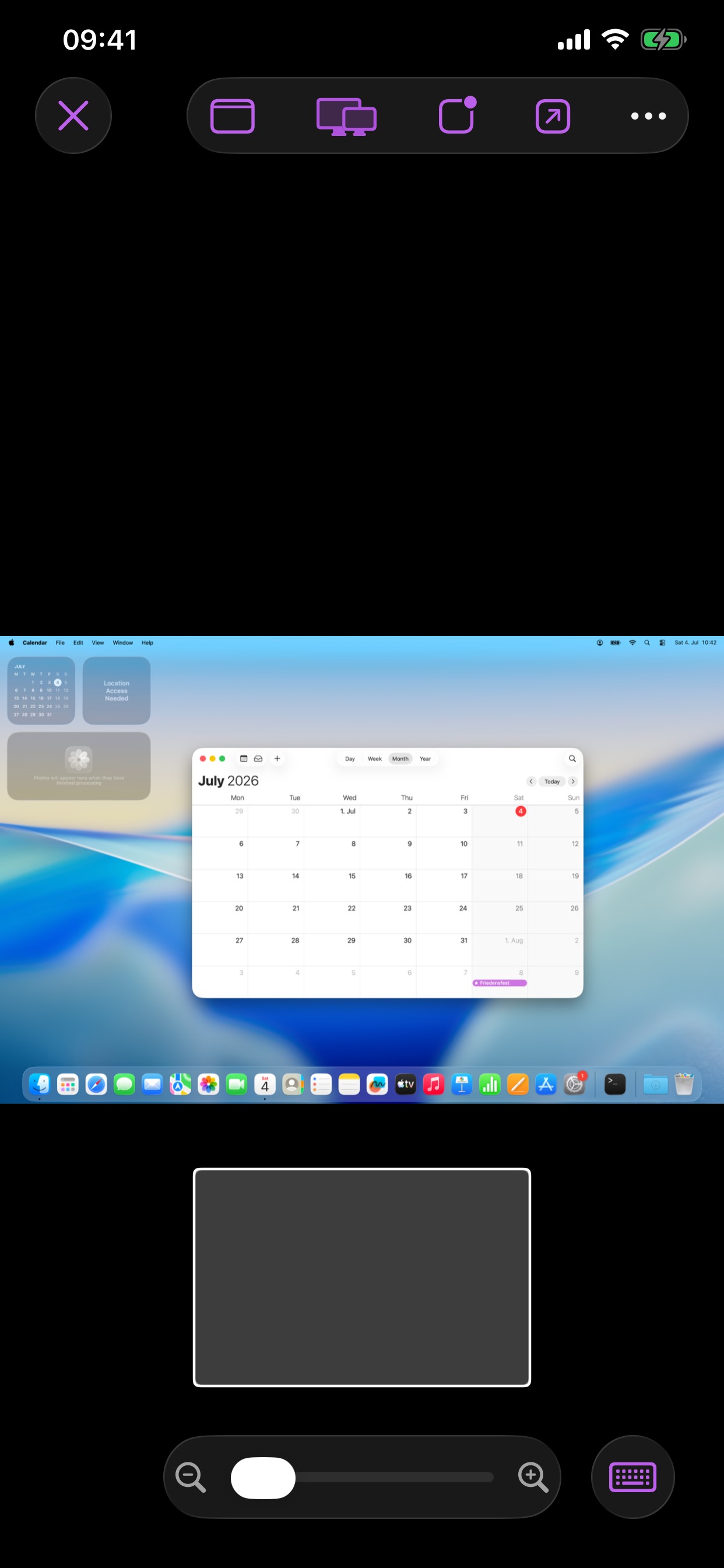
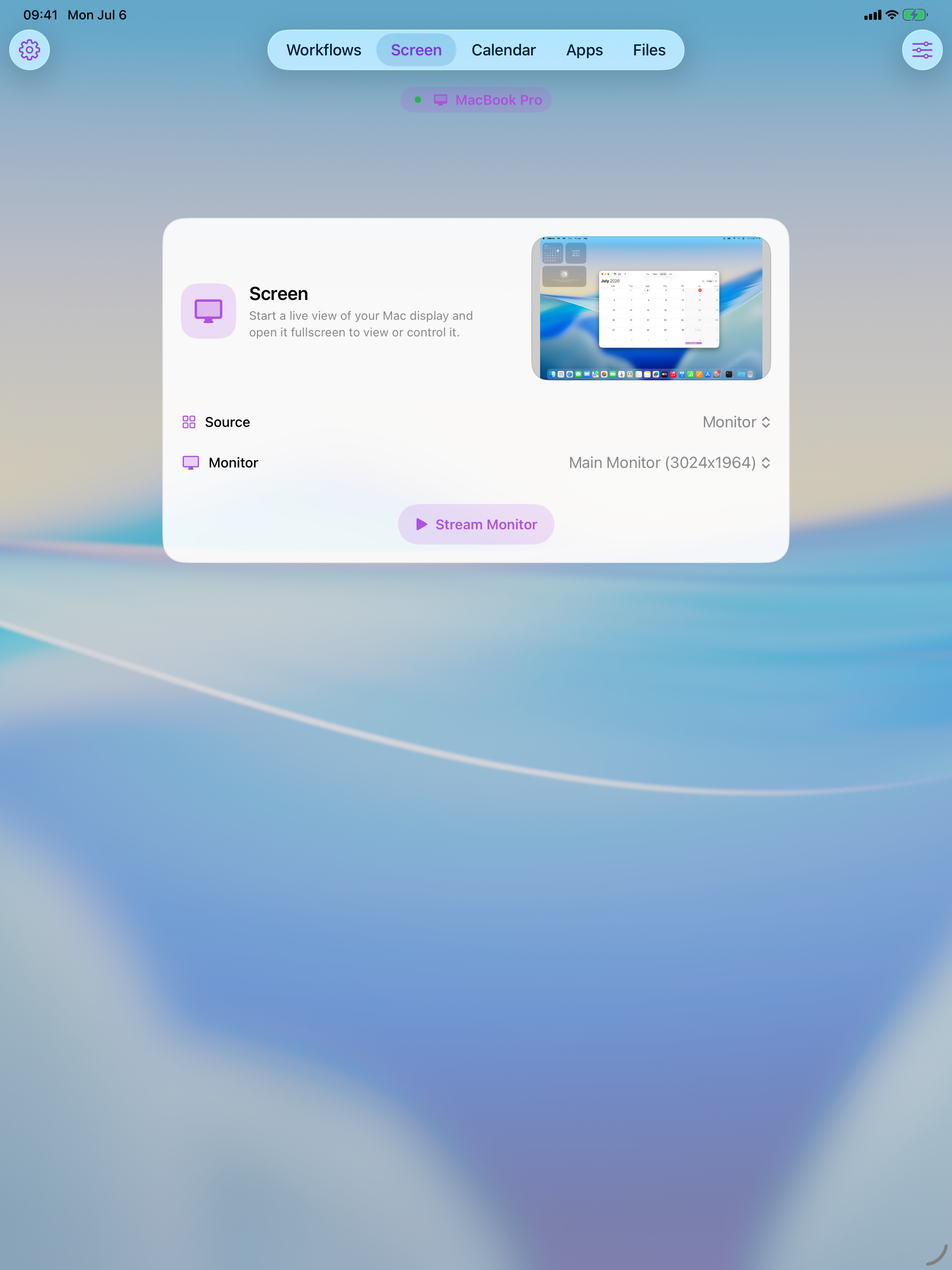
Open a monitor, app window, or selected Mac app on iPhone, iPad, or another Mac with a high-resolution video codec, optional Mac or app audio, Retina-focused quality profiles, zoom, Picture in Picture, and full-screen viewing.
Stream a monitor, app window, or selected Mac app to iOS with high-resolution video and optional Mac or app audio, then view, zoom, type, click, scroll, and run workflows when the Mac itself is somewhere else.
Features
Cuevello makes Mac apps feel reachable from iPhone, iPad, or another Mac: stream the screen with a high-resolution video codec and optional audio, control the active window, send keyboard input, run menu commands, exchange files, and turn repeated tasks into encrypted workflows.
Open a monitor, app window, or selected Mac app on iPhone, iPad, or another Mac with a high-resolution video codec, optional Mac or app audio, Retina-focused quality profiles, zoom, Picture in Picture, and full-screen viewing.
Switch from view-only to control mode for taps, clicks, scrolling, text entry, hardware keyboard shortcuts, and common modifier keys.
Pick running or installed Mac apps, select a window when needed, activate the app for input, or switch the stream source without leaving the Screen view.
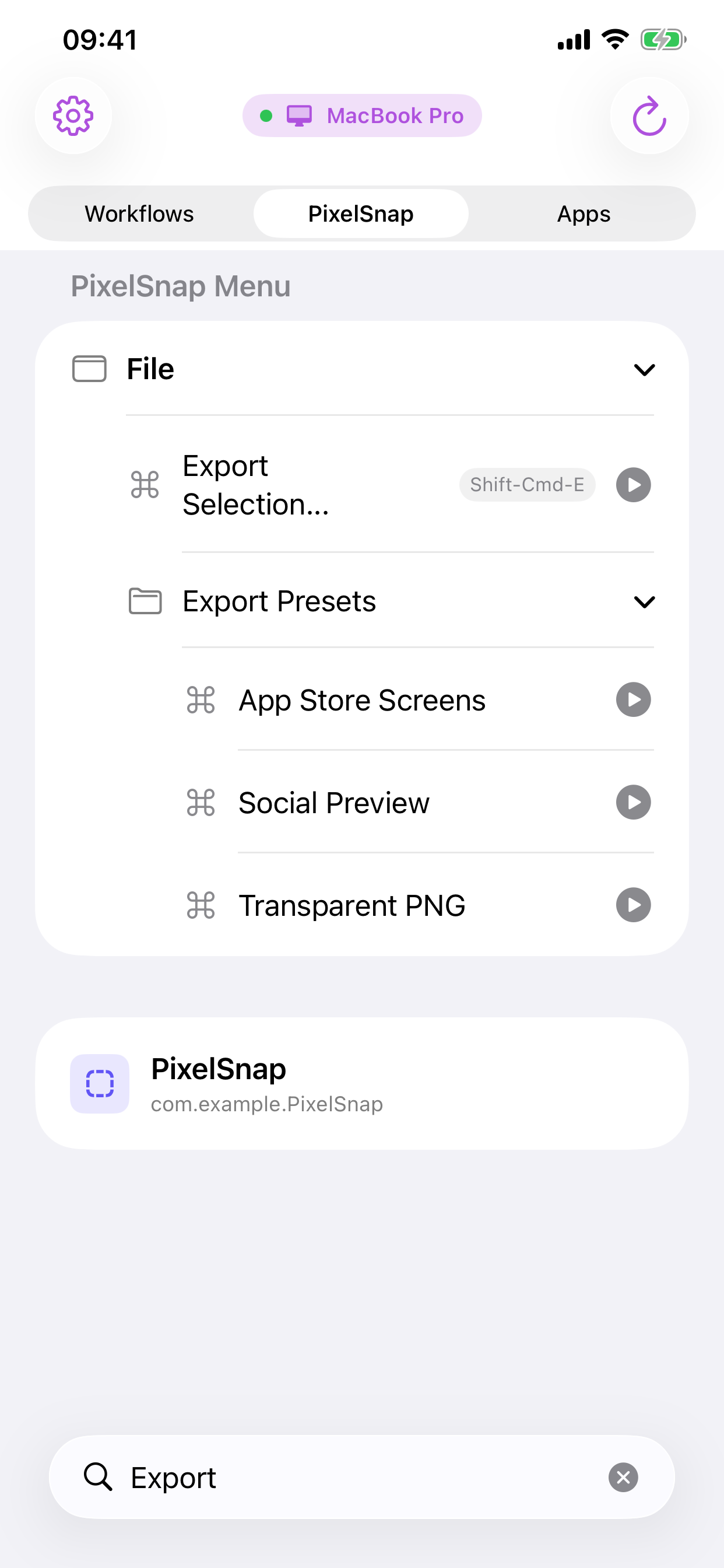
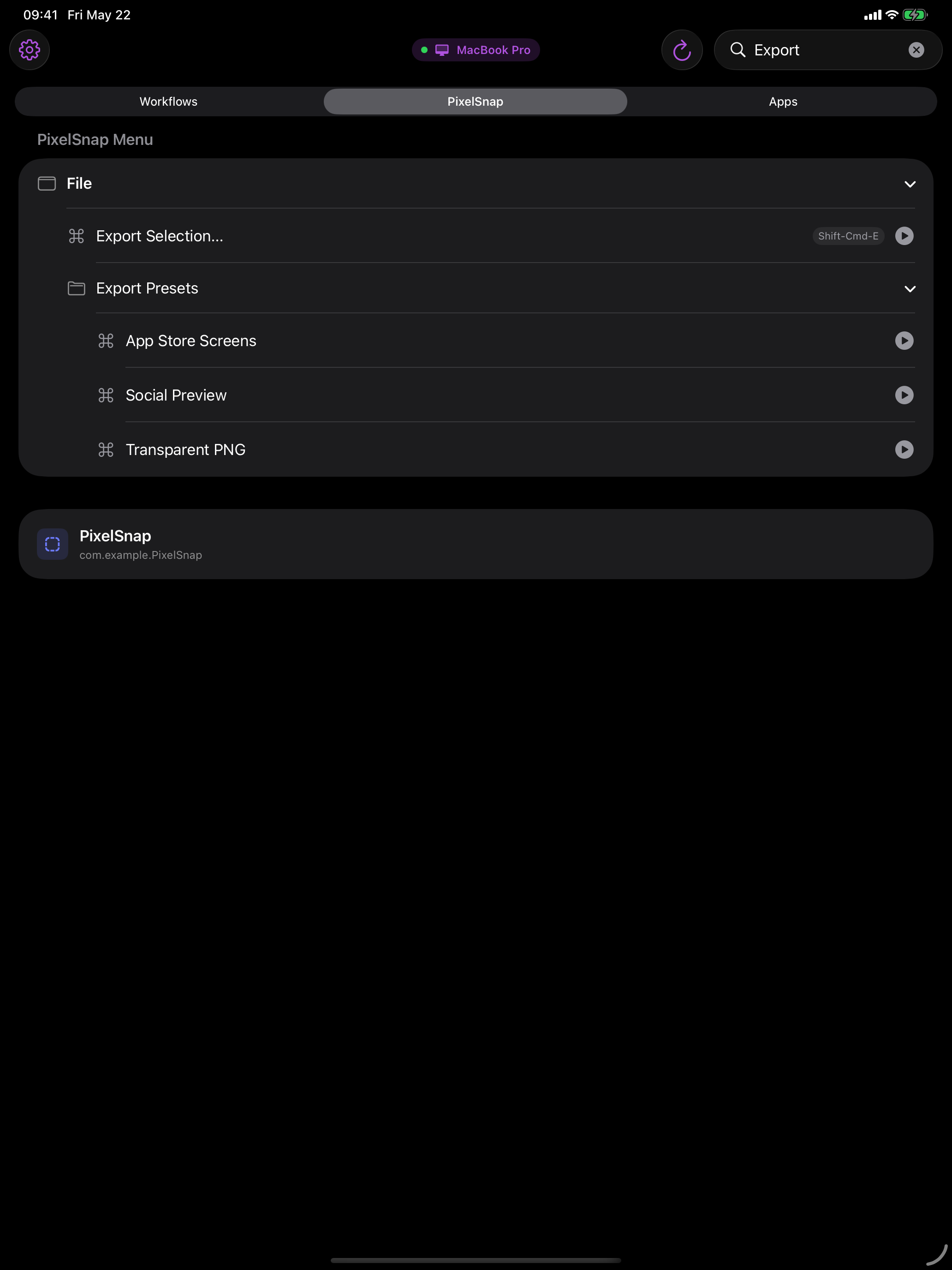
Open Mac menus on iOS and trigger executable items with familiar keyboard shortcut labels.
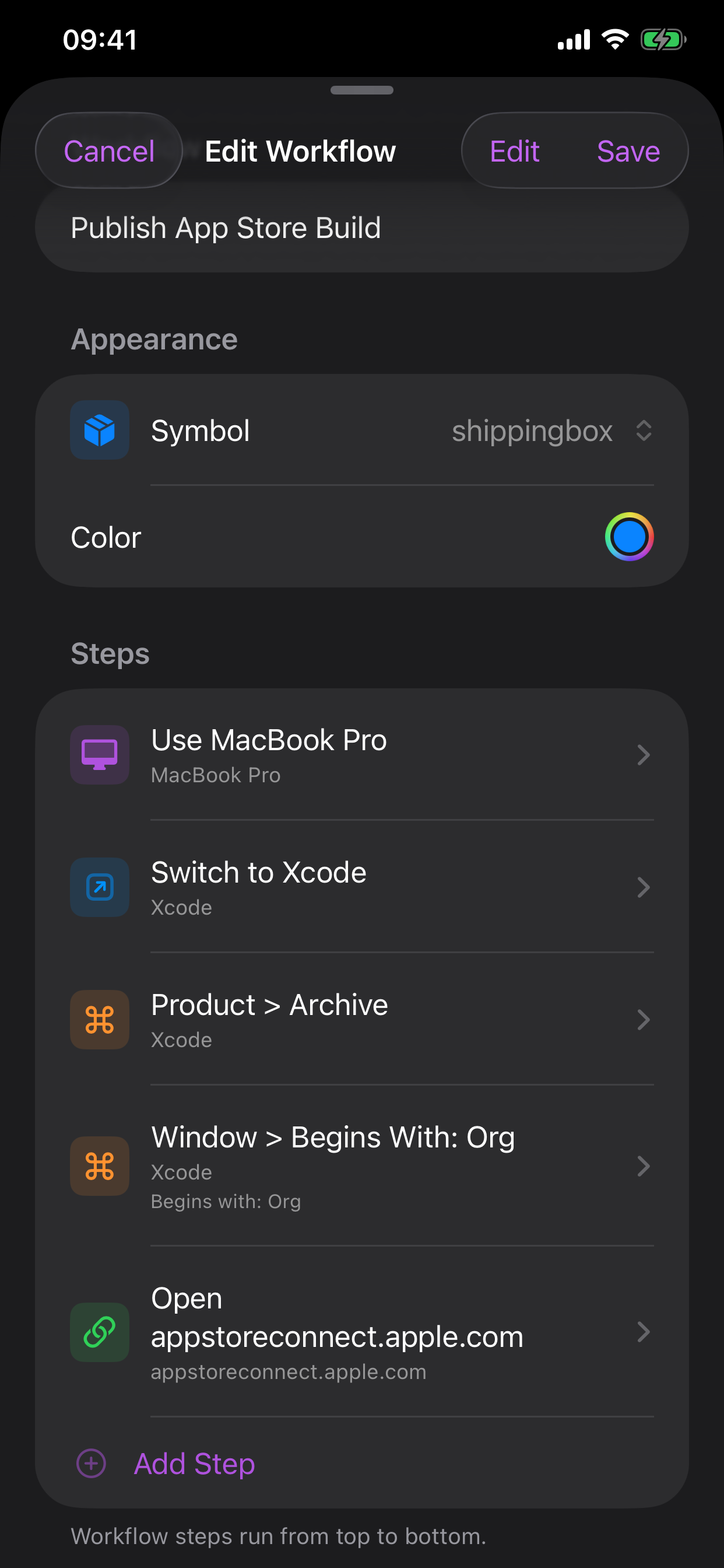
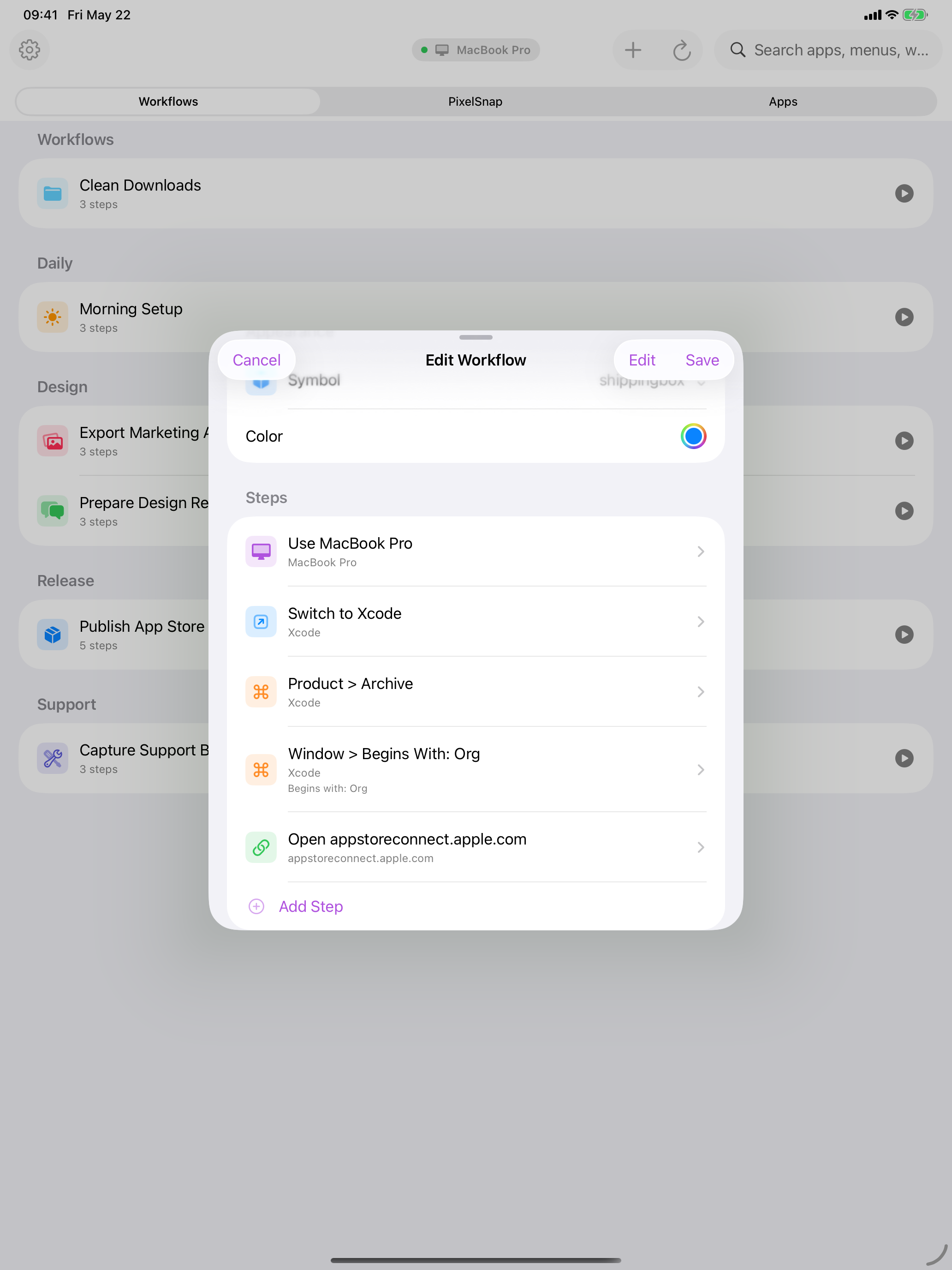
Combine screen starts, app switching, menu actions, URLs, and delays into repeatable routines that sync through iCloud.
Transfers are end-to-end encrypted after secure pairing. For access outside the local network, Cuevello can use an optional self-hosted Relay, and Extra Authorization can require an additional password for protected actions.
Build workflows that ask you to pick a menu item at runtime, perfect for menus whose options change depending on the active document, window, or app state.
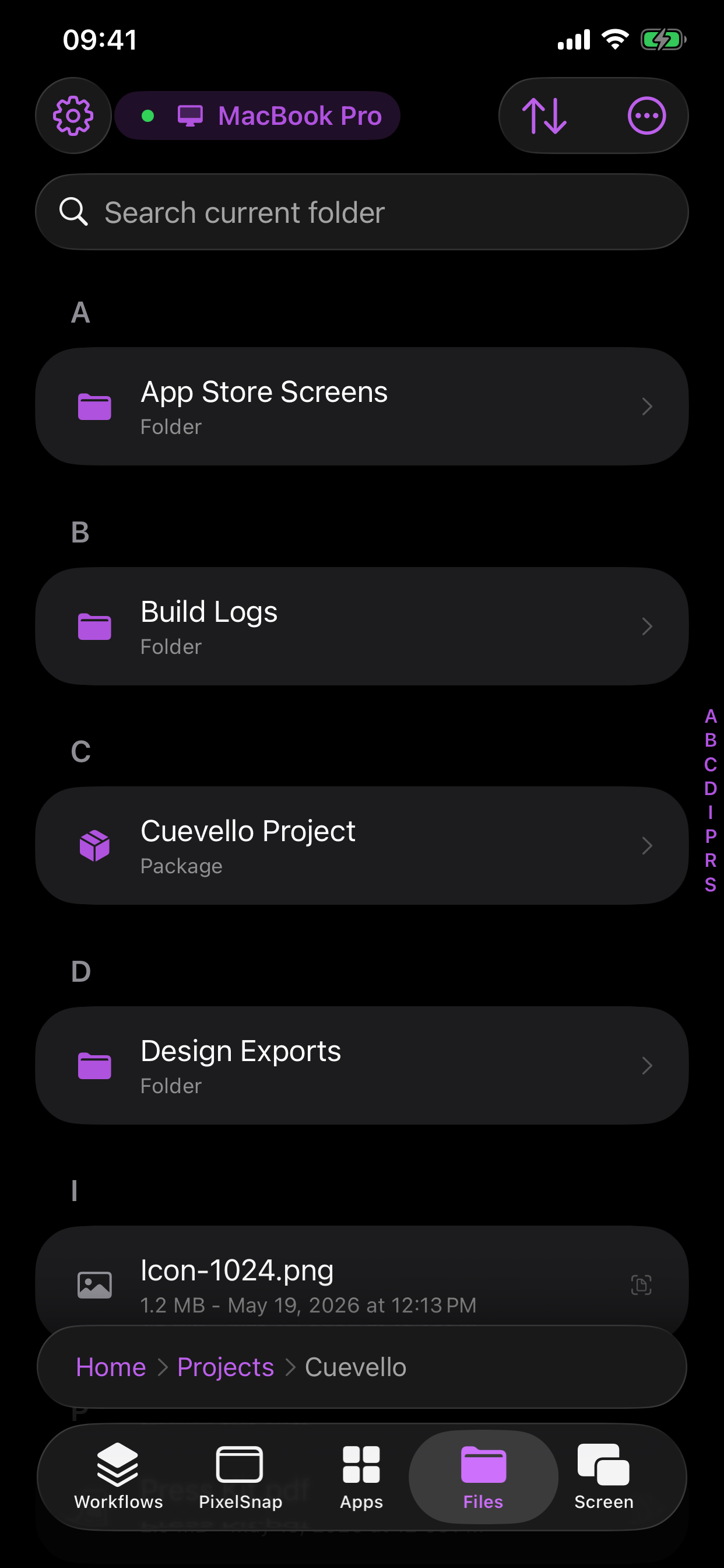
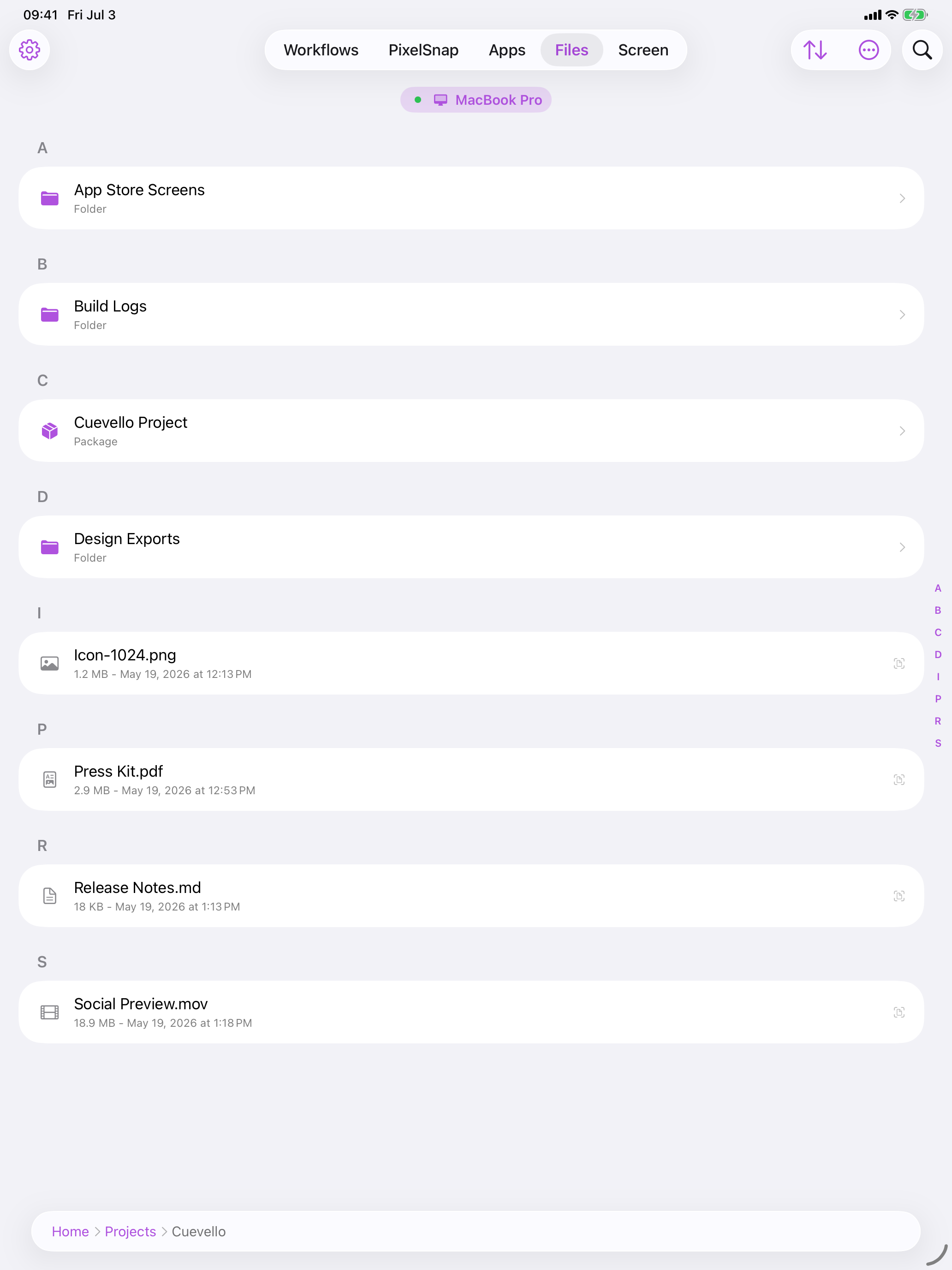
Access files on the paired Mac, load local files, and download them to continue work from iOS or another Mac.
Add URL steps to workflows, use fixed links, or ask for a URL at run time.
Send text from iOS to the macOS Clipboard so it is ready to paste into any Mac app, field, or workflow.
On iPad and Mac, trigger the paired Mac app's keyboard shortcuts directly, with every shortcut reachable from the app menu.
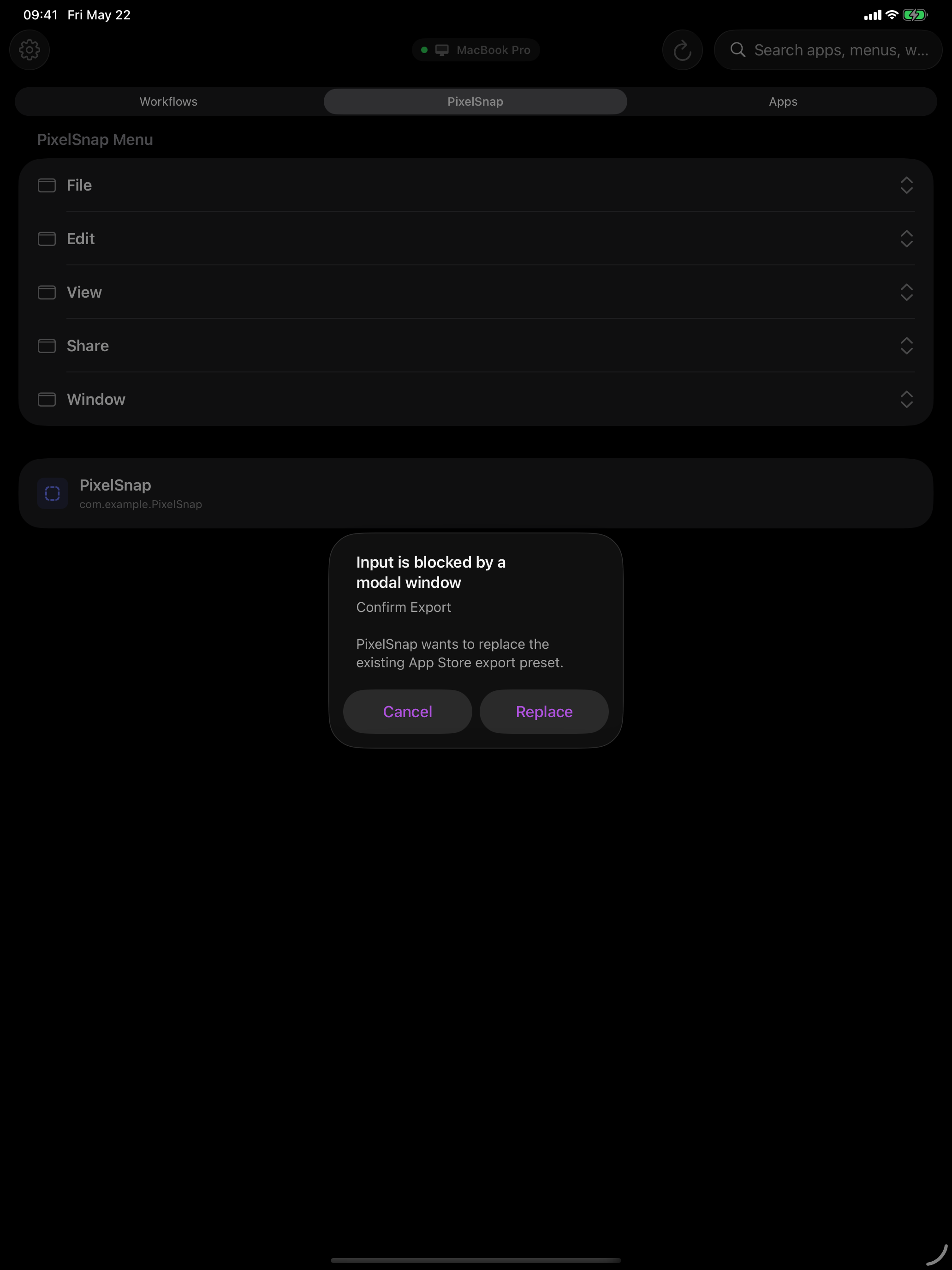
When a Mac dialog blocks input, the app can show the state and offer dismiss actions.
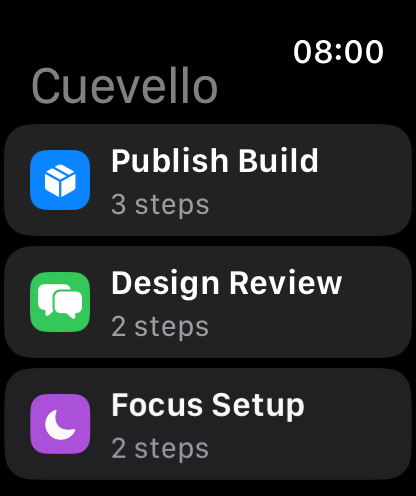
Saved workflows show up as App Intents, widgets, and Apple Watch actions for one-tap starts.
Screenshots
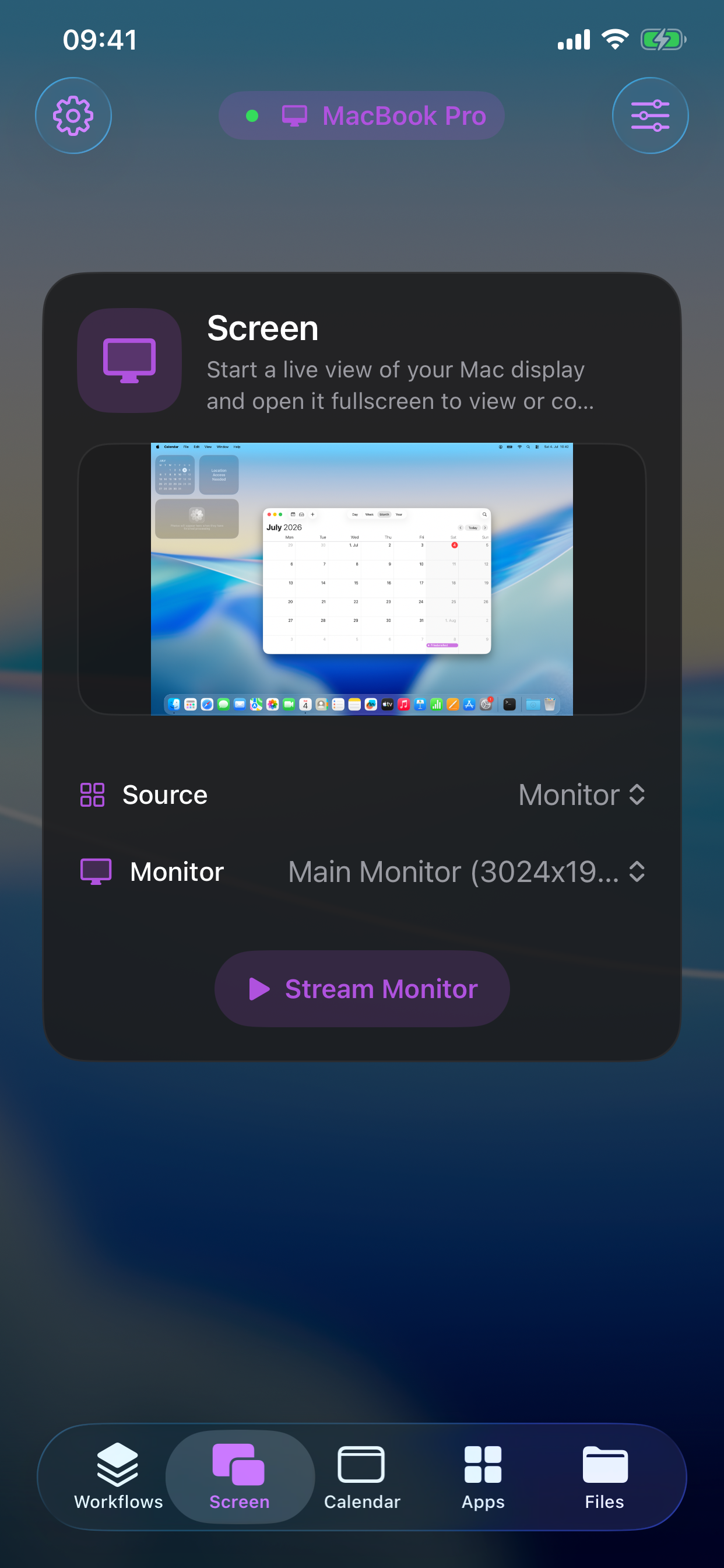
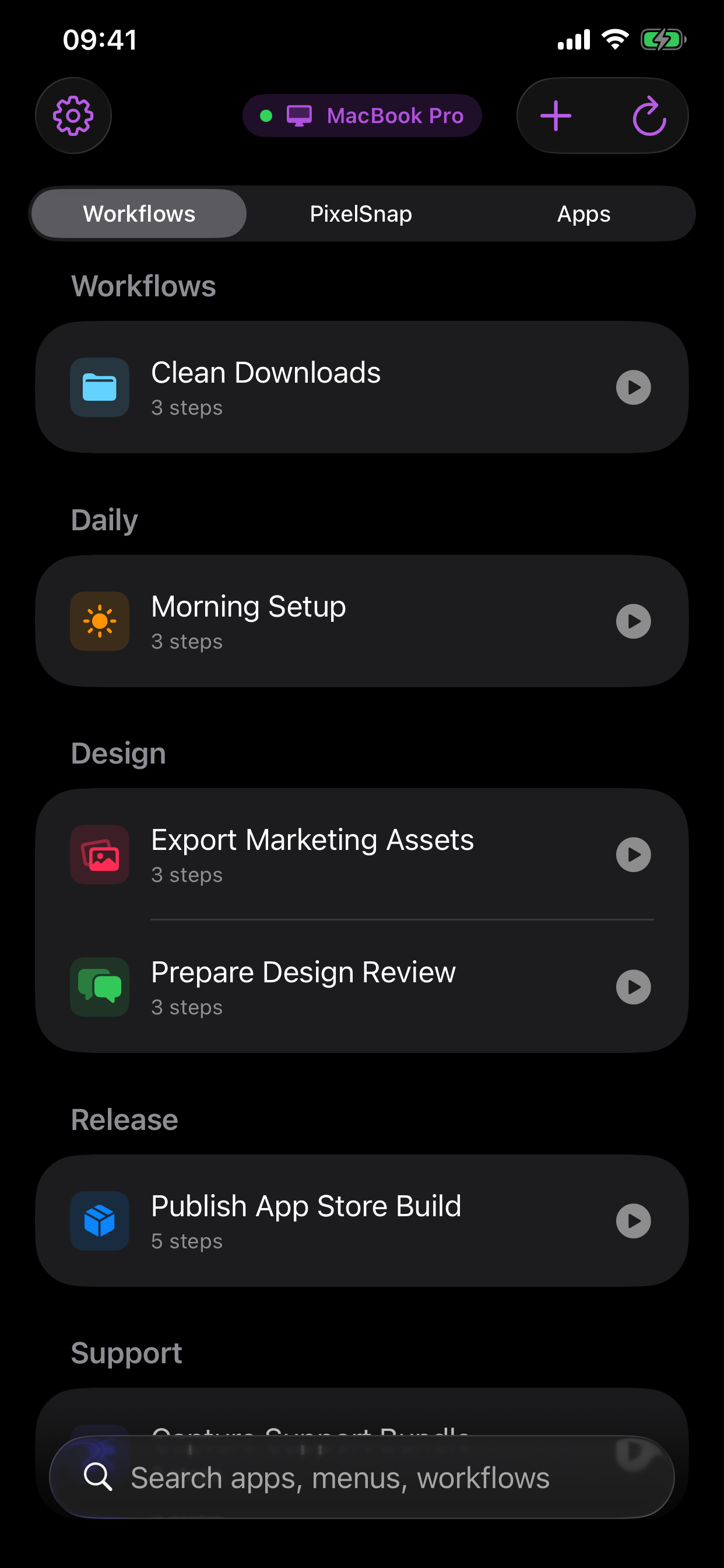
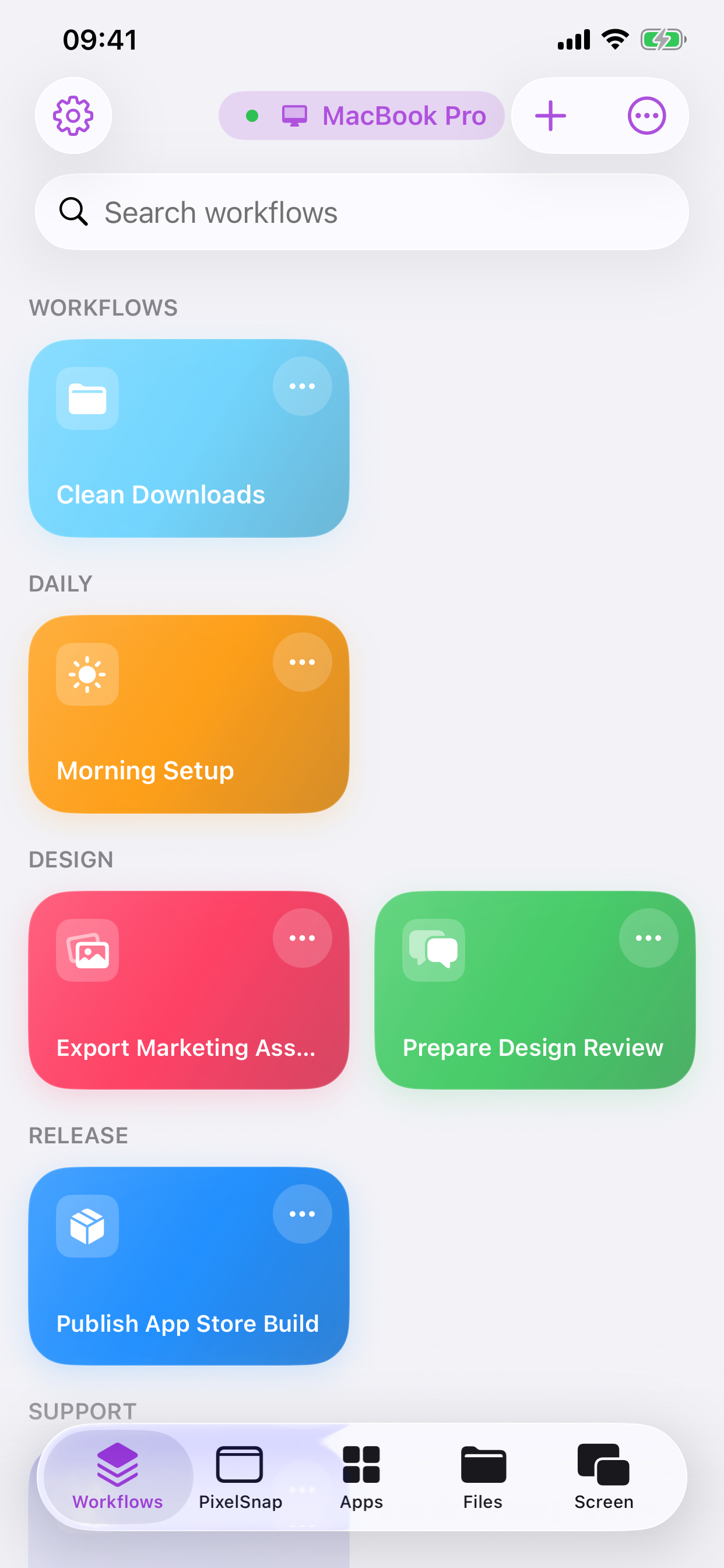
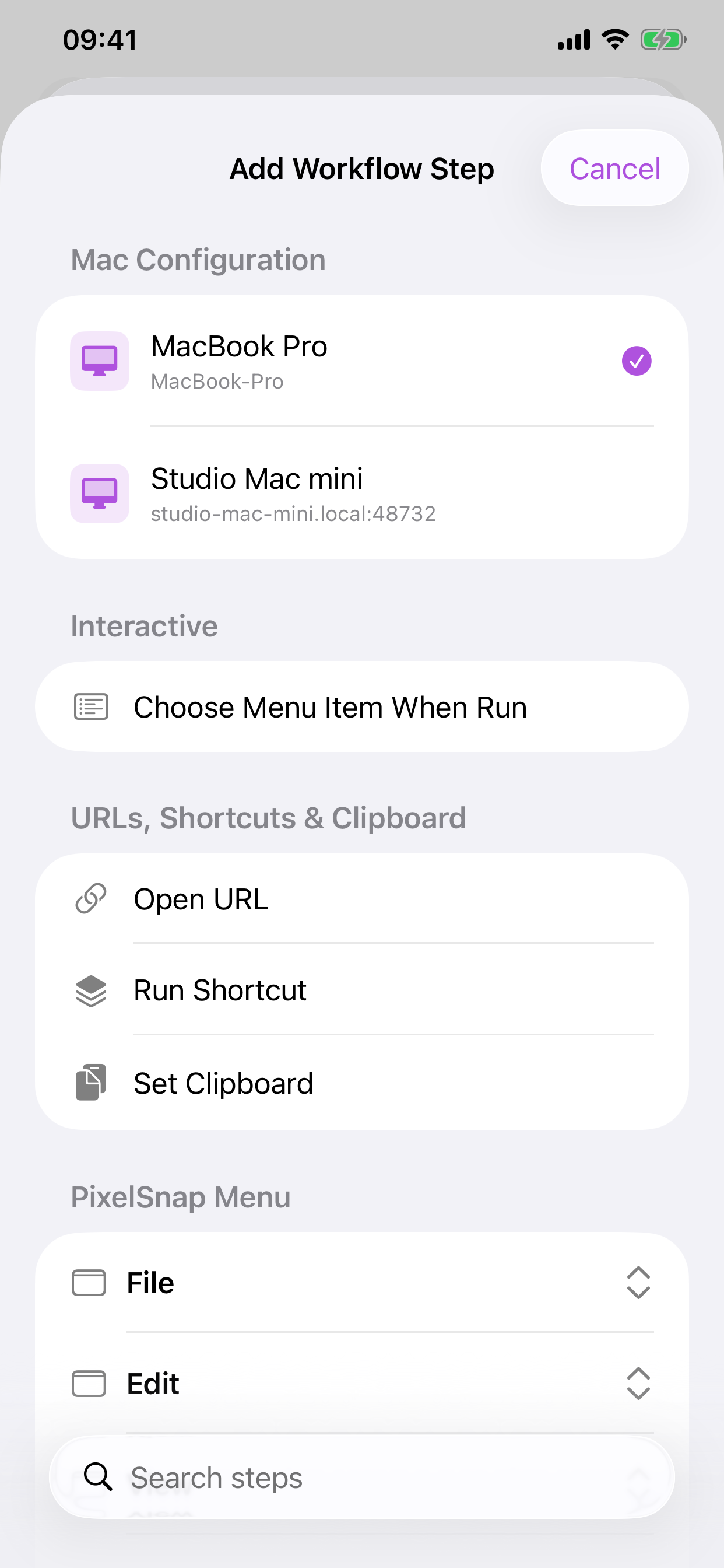
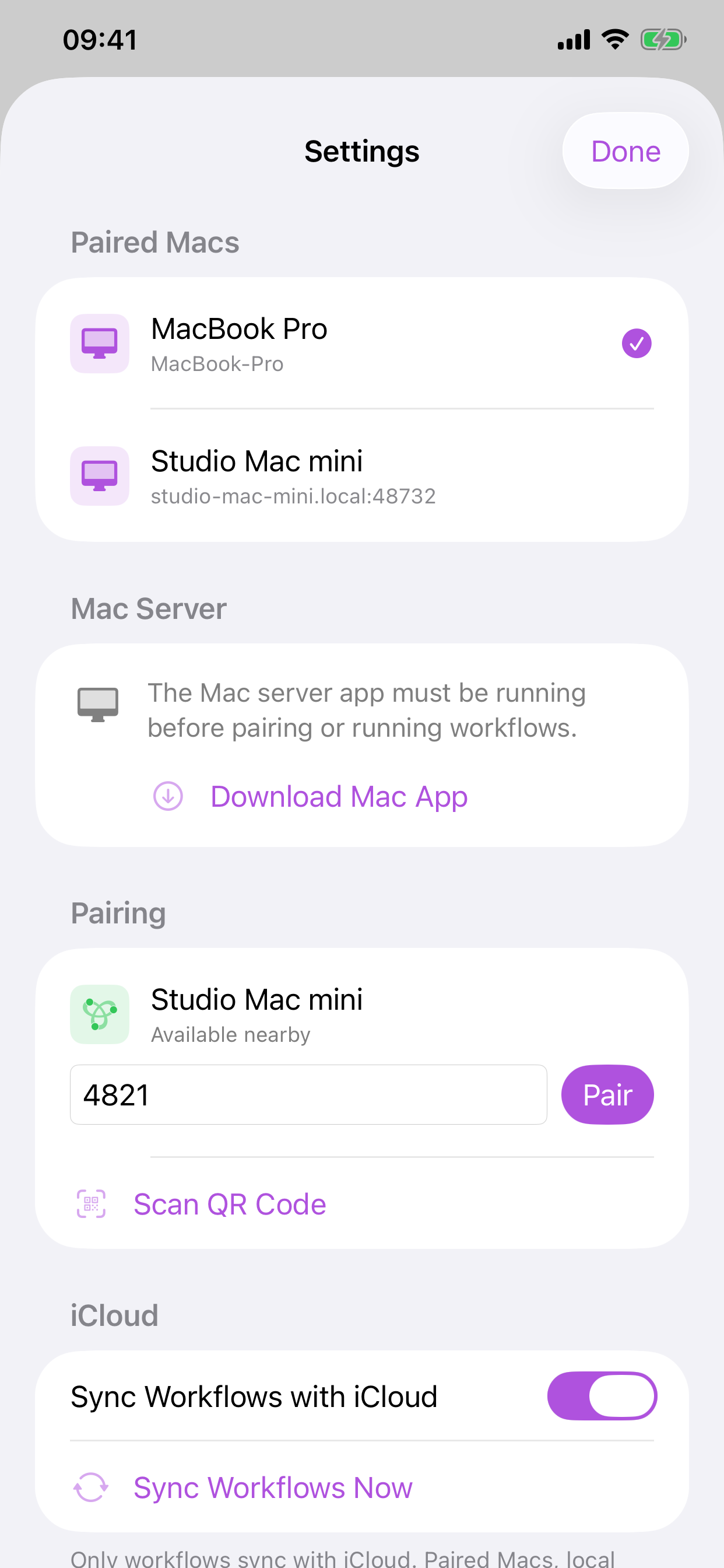
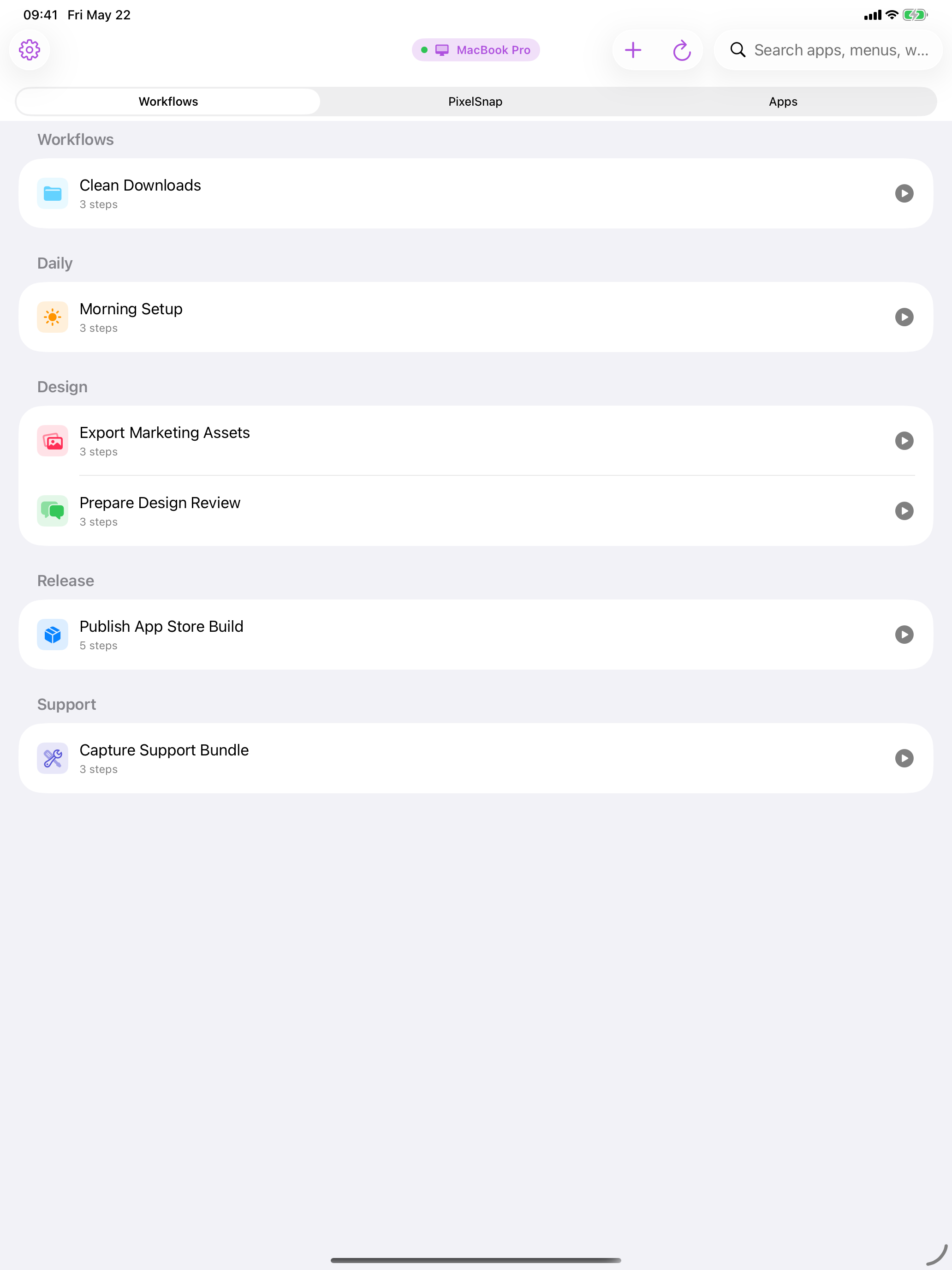
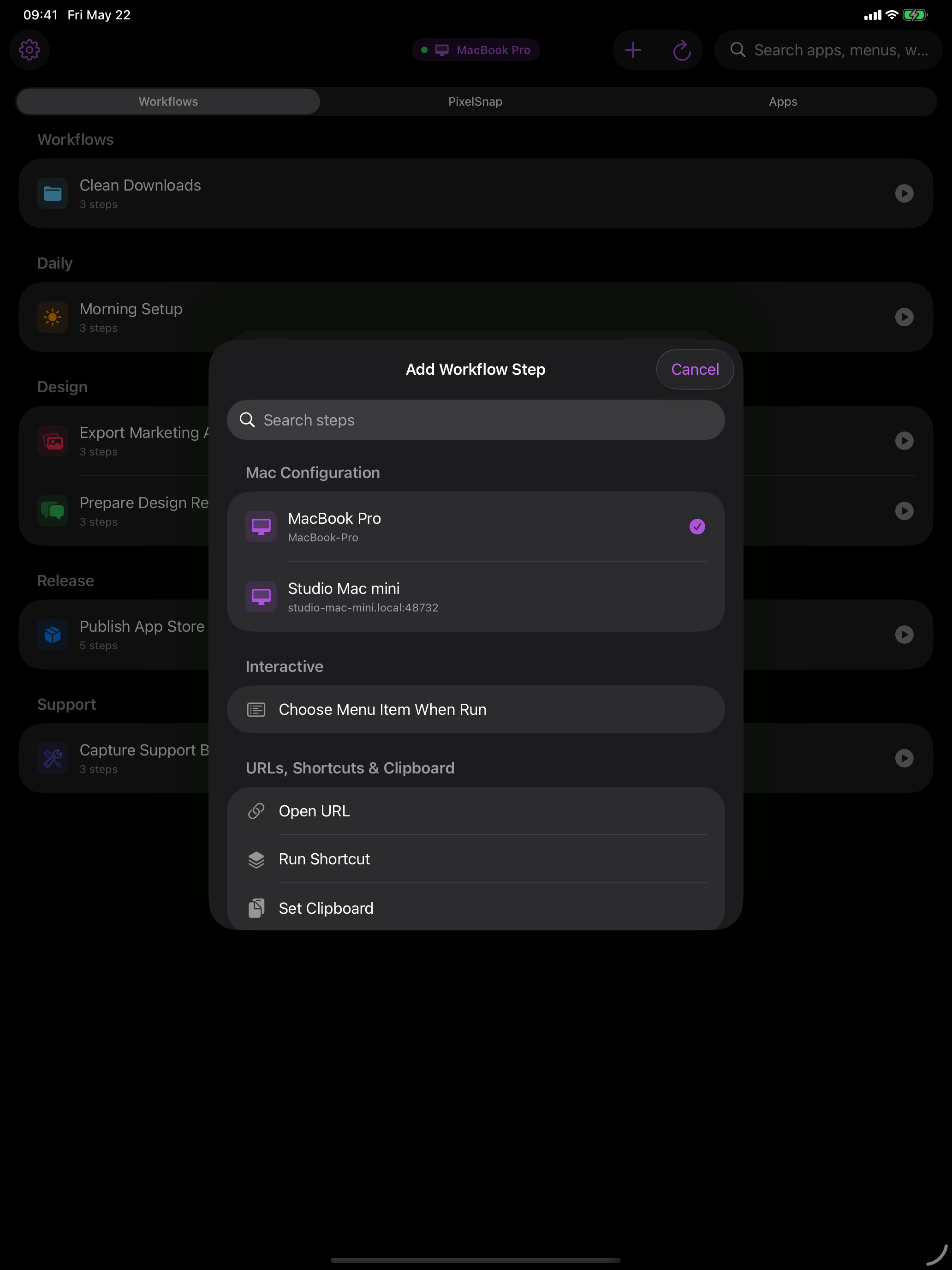
The iPhone and iPad apps are built around quick access to Screen, apps, menus, workflows, and files, so remote Mac work stays close even when the Mac is not in front of you.
Workflows
Cuevello workflows chain the small actions around remote Mac work: open the right app, start a screen stream, choose a menu command, send text or files, then continue from iPhone, iPad, another Mac, Shortcuts, widgets, or Apple Watch.
Capture exact Mac menu paths from the active app and reuse them as one-tap actions.
Open fixed URLs or make the workflow ask for a URL when it runs from Cuevello or Shortcuts.
Activate, open, or quit Mac apps as part of the same routine.
Start a monitor, app window, or selected app stream from a workflow, including optional audio, picture-in-picture, or full-screen presentation.
Send files to the Mac, access local Mac files, or download files back to the device when a routine needs them.
Insert prepared text into the active Mac context, useful for prompts, snippets, commands, and repeatable replies.
Group workflows with folders, icons, and colors so daily, release, support, and design routines stay easy to find.
Keep saved workflows synced between your iOS devices so your routines are ready where you need them.
Keep separate paired Mac profiles and run the right workflow against the right machine.
Use cases
Use Cuevello wherever you want the Mac app experience on iPhone, iPad, or another Mac without walking back to the keyboard.
Open Terminal, Xcode, Simulator, design tools, or any selected app window as a high-resolution live stream with optional Mac or app audio, then control it with touch, keyboard, trackpad, or Picture in Picture.
After sending a Codex or other AI prompt, keep the streamed Mac app visible, inspect logs, rerun tests, or trigger the next workflow without returning to the desk.
When an AI coding prompt finishes, start the next Xcode build or run action remotely, including workflows that deploy directly to a connected device.
Run the iOS Simulator on your Mac, enter AI-agent changes from iPad, and watch the result through a Cuevello Screen stream while the Mac keeps doing the build work.
Start a macOS Shortcut from iOS when your Mac is reachable on the local network or VPN: trigger backups, app routines, scripts, or focus setups.
Pause playback, switch apps, hear Mac or app audio on the client, open media URLs, or run a prepared living-room workflow while the Mac is across the room.
Use Cuevello on one Mac to run menu commands, shortcuts, or workflows on another paired Mac without switching desks.
Open the right app, jump to a URL, start screen flows, and recover from modal dialogs without breaking presentation focus.
Create workflows for casual tasks like sending the Mac to sleep, restarting it, dimming the display, or switching to a focus setup.
Keep profiles for a desk Mac, build Mac, or media Mac and run workflows against the machine that actually owns the task.
Setup
Cuevello needs the Mac menu bar app and Accessibility permission. After secure pairing, transfers are end-to-end encrypted on the local connection.
The menu bar app publishes a local Bonjour service and shows the server status.
macOS requires Accessibility permission so Cuevello can read and trigger menu items.
Scan the QR code or choose the discovered Mac, enter the short-lived pairing code, and remove paired devices later when access should stop.
Save menu commands, file transfers, screen streams, text insertion, and app actions as routines in Cuevello, widgets, or iOS Shortcuts.
Downloads
Install the iOS app from the App Store and download the Mac companion to connect your devices.
Cuevello is a one-time purchase with no subscription. The Mac companion app is free.
Support
For setup help, pairing issues, purchase questions, bug reports, or feedback, contact Cuevello support by email.
Please include your Cuevello version, Mac companion version, device model, system versions, and a short description of what happened.
Open support pageFAQ